Transform your Fujifilm Apeos multifunction device into an intelligent printing hub. 13 powerful features — from AI document translation to Microsoft 365 cloud storage — all accessible directly from the device touchscreen.
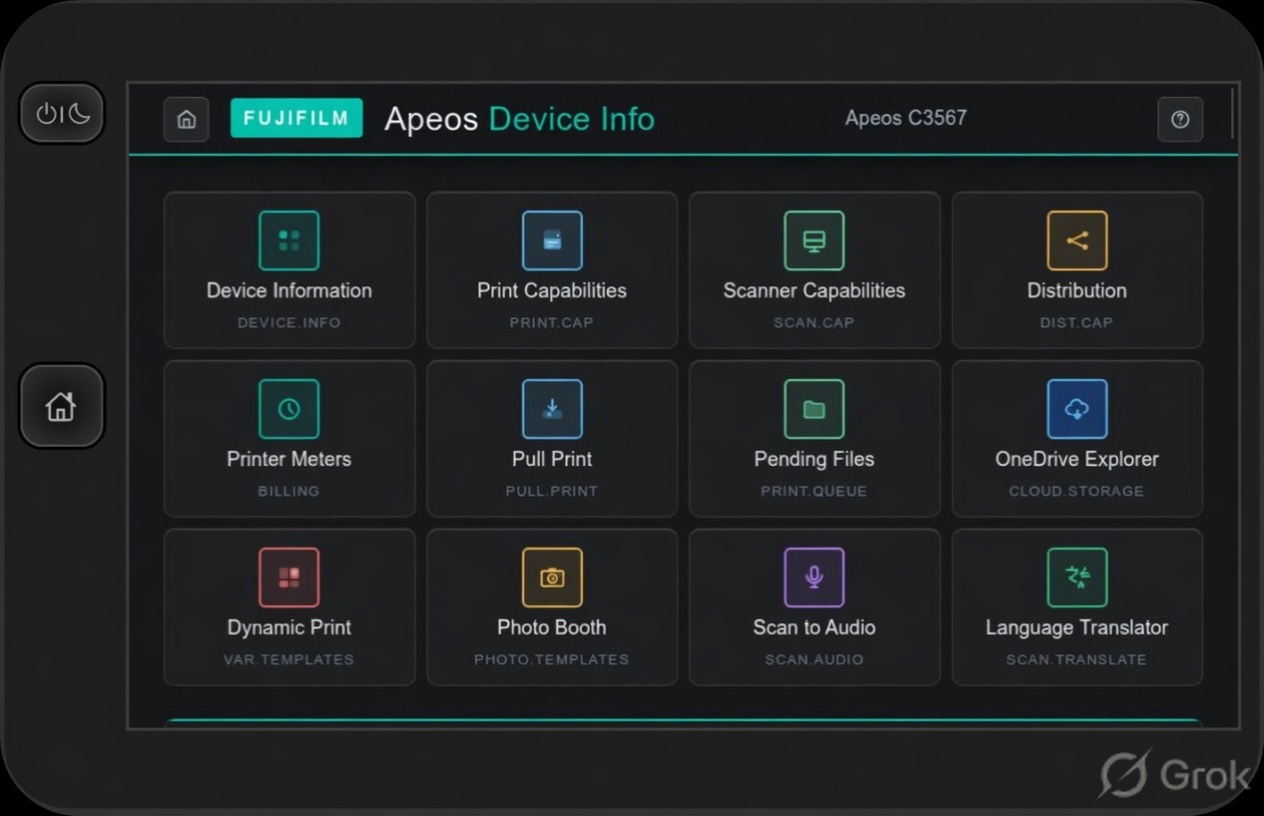
High-contrast layout with large, finger-friendly tiles. All 13 features are one tap away — right at the device.


Tap any tile on the home screen to jump straight to that feature. Every section is optimised for the device panel — large tap targets, clear labels, and intuitive flow.
13 features built around how your team actually works — device status, Microsoft 365 cloud storage, AI documents, and more. All from the panel.
Instantly see your device’s model, serial number, network address, firmware version, location label, and security status — all live from the device. No admin console needed.
A clear overview of everything your device can do: colour printing, two-sided output, finishing options, and more. Know your hardware before you need it.
Full scanner feature summary including colour scan, duplex scan, auto size detection, auto colour selection, OCR, and scan preview support — all shown with clear status indicators.
See at a glance which document distribution methods are active on your device — scan to email, scan to folder, encryption, digital signatures, and more. Confirm your setup is correct before you need it.
Check current page counts — total, colour, and mono — directly from the panel. Useful for lease tracking, cost-per-page monitoring, and service calls without logging into the admin web interface.
Enter the URL of any PDF and print it directly from the device. Choose colour mode, duplex, copies, pages-per-sheet, and paper tray — then tap Print. No computer needed.
See a list of documents waiting on the server, ready to print. Tap any file to review it and print with your chosen settings. If OneDrive is connected, upload directly to your cloud storage in one tap.
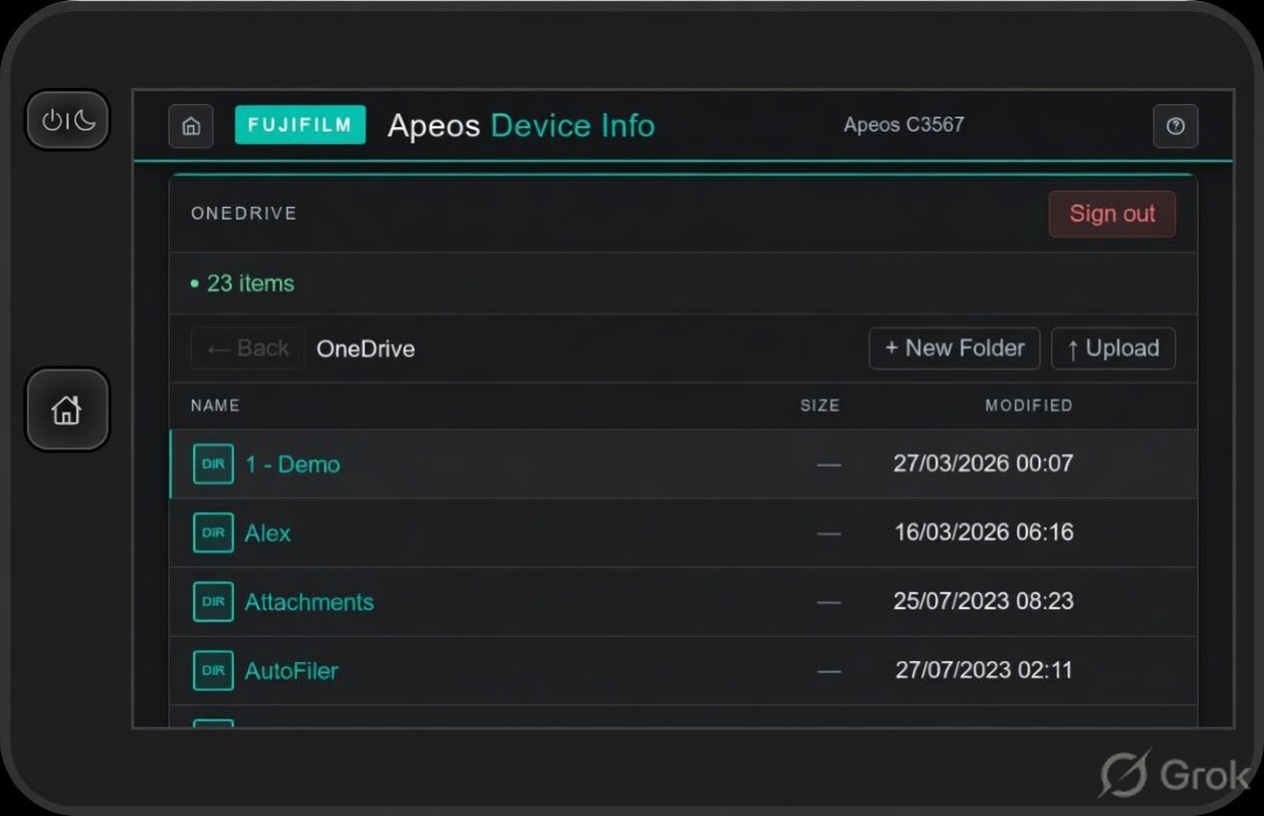
Browse your personal Microsoft 365 OneDrive from the device panel. Sign in once with a QR code on your phone — that single sign-in also unlocks SharePoint Explorer and any future Microsoft sections simultaneously. Navigate folders, upload scanned documents, create new folders, and print any file.
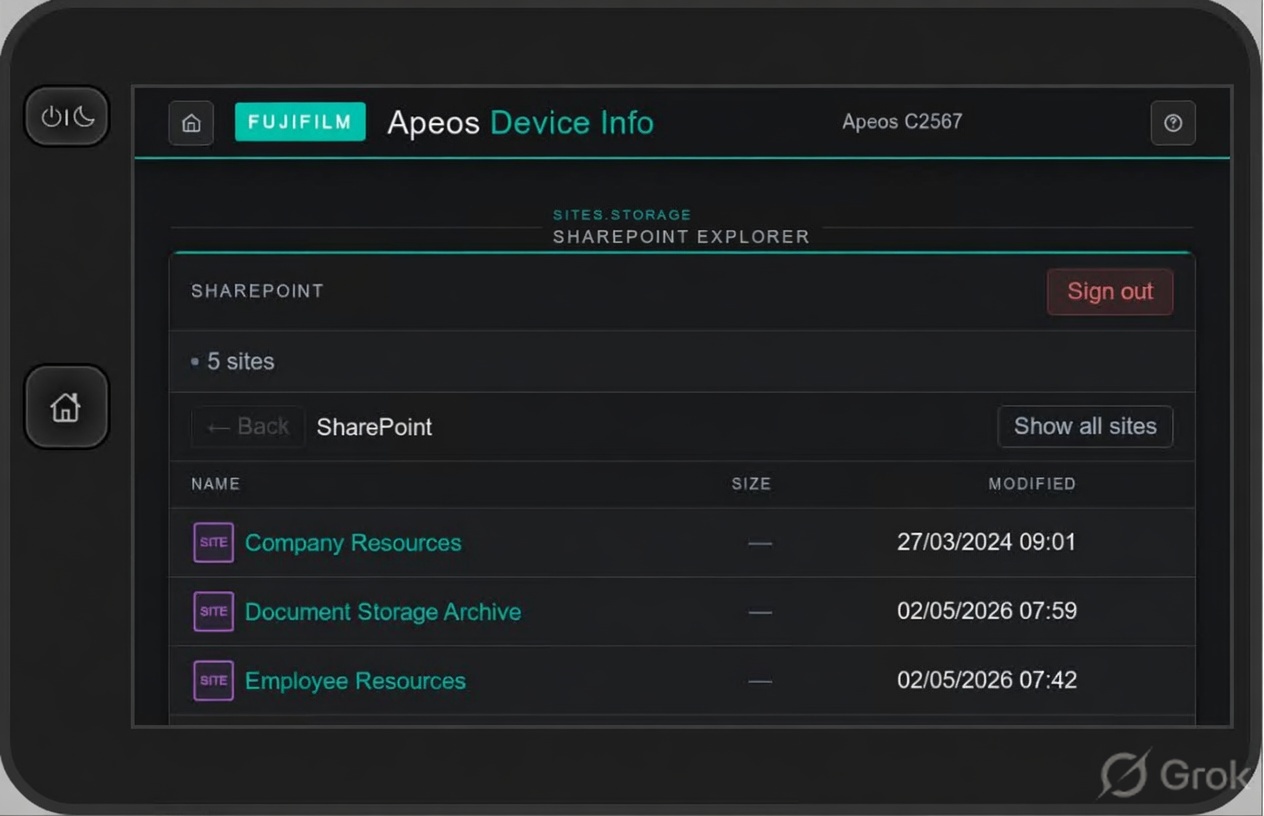
Browse the SharePoint sites your Microsoft 365 account has access to — directly from the device panel. Navigate document libraries, upload files, create folders, and print PDFs from any site. Uses the same single Microsoft sign-in as OneDrive: sign in once and both sections are available. Tap Show all sites to see every accessible site, not just your followed ones.
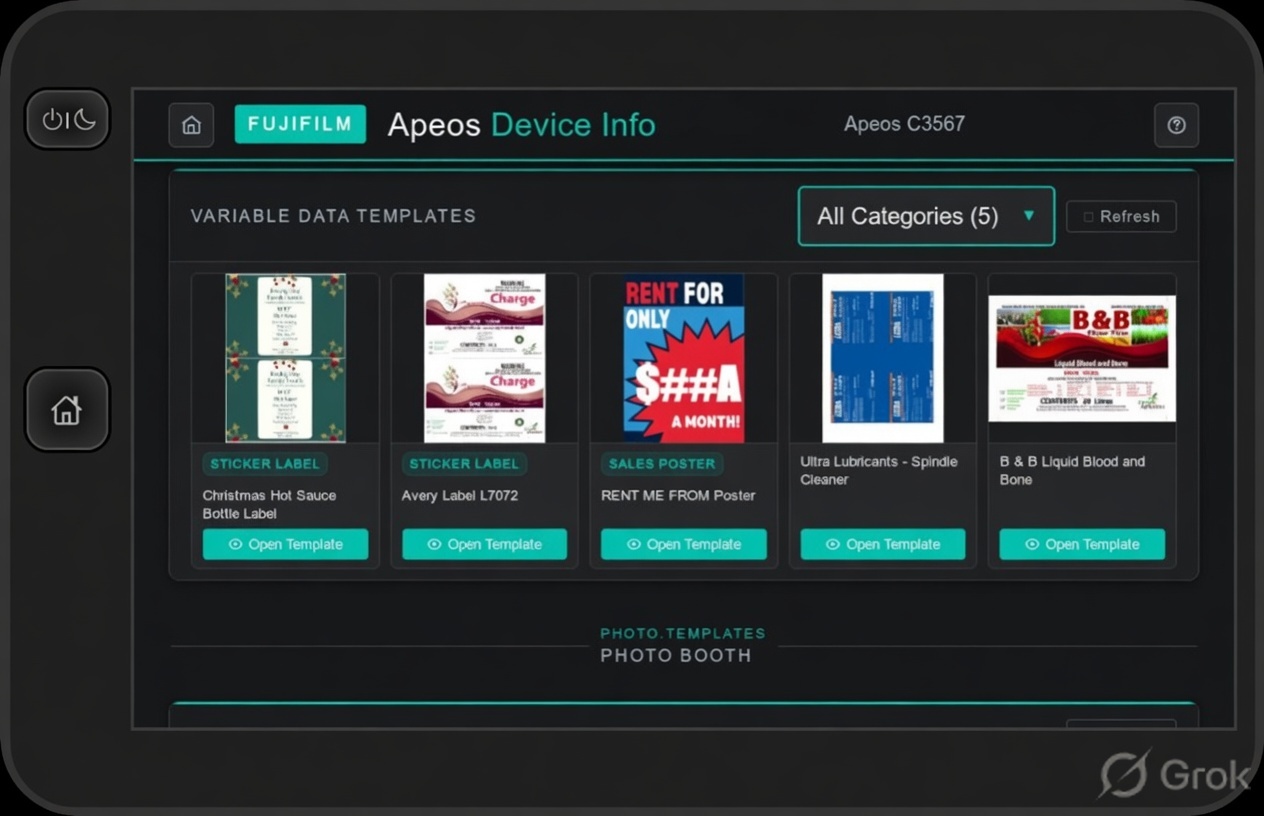
Choose from a gallery of document templates — labels, certificates, posters, business cards and more. Enter your own text and images, and the app generates a fully personalised PDF and prints it on the spot. Perfect for on-demand, variable data printing.
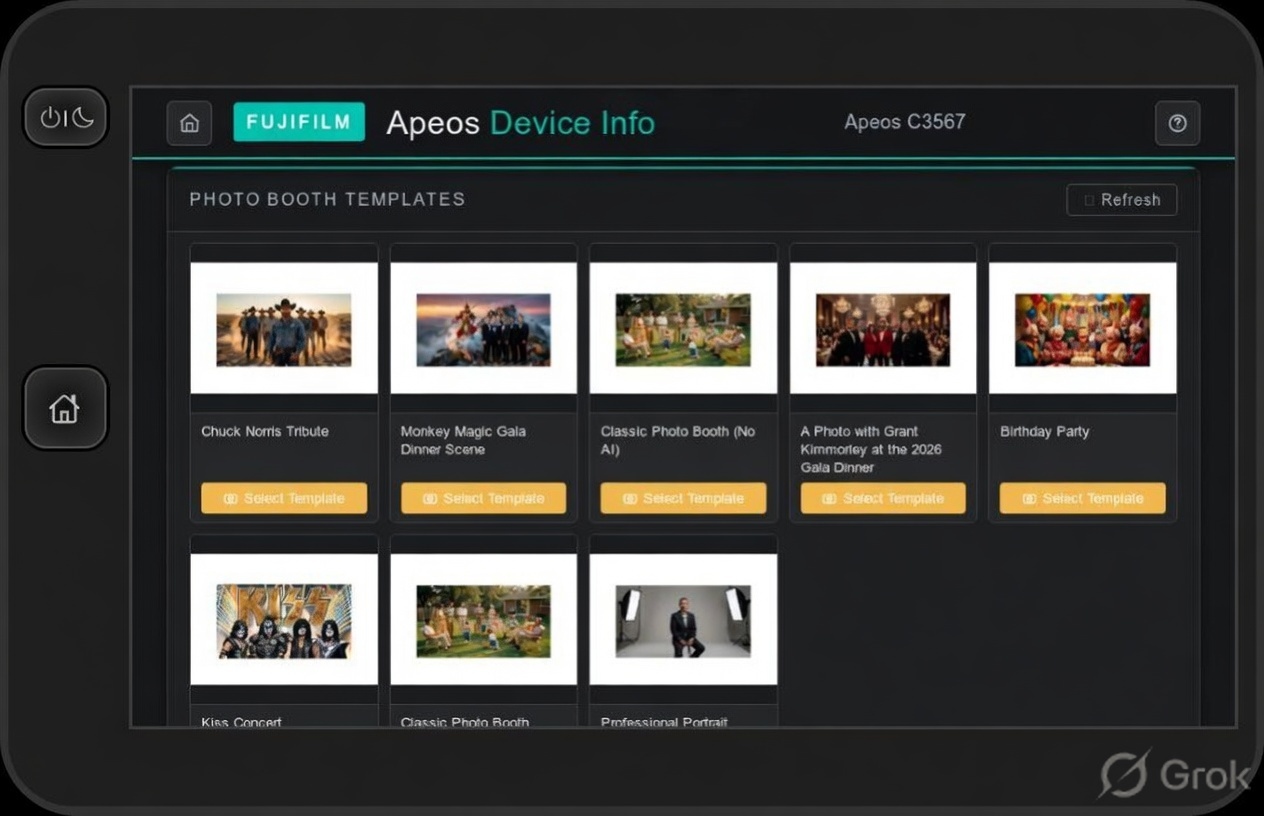
An experience in itself. Choose a scene, scan a QR code with your phone, take a selfie, and watch AI composite your photo into the template. The finished print arrives in seconds — ideal for events, promotions, and visitor experiences.
Place a document on the scanner, choose a voice and language, and receive an MP3 audio file by email or SMS. Great for accessibility, commutes, and multilingual teams. Supports auto language detection and on-the-fly translation into your preferred language before speaking.
Scan any document and print a translated copy in any of 30+ languages — powered by Grok AI. The result is a clean, properly formatted PDF ready to print immediately. No manual copy-paste, no waiting for someone to translate it for you.
Dynamic Print turns any Word template into a personalised document. Browse a live template gallery, filter by category, fill in names, dates, logos, or any custom field — and get a finished, print-ready PDF in seconds.
Ideal for labels, certificates, promotional materials, event passes, and anything where every print needs to be unique.

Photo Booth brings event printing to life. Choose a themed scene on the device — a gala dinner, concert stage, branded backdrop — scan the QR code with your phone, and take a selfie. AI composites your photo into the scene and prints it in seconds.
Guests walk away with a branded, personalised print. No operator needed, no setup between prints.

Sign in to Microsoft 365 by scanning a QR code with your phone — no typing passwords on the device. That single sign-in unlocks both OneDrive Explorer and SharePoint Explorer at the same time. Browse folders, upload scanned documents, create new folders, and print anything directly from your OneDrive.
Signing out of either Microsoft section signs you out of both. Your credentials are never stored on the device.

Access your organisation's Microsoft 365 SharePoint sites directly from the Apeos touchscreen. Browse your followed sites or tap Show all sites to see every accessible site. Open any document library, navigate folders, upload files, and print PDFs without touching a computer.
Uses the same single Microsoft sign-in as OneDrive Explorer — scan the QR code once and both Microsoft sections are available for the duration of your session.
Cyber AI Connect brings Grok AI and advanced text-to-speech directly to the Apeos panel — no separate apps, no extra hardware.
Place a document on the scanner, choose your preferred voice and language, and the app converts the text to a spoken MP3 file. Delivered to your email or phone by SMS — ready to listen on your commute, in a meeting, or shared with a colleague who can’t read the original language.
Voices: Eve, Ara, Rex, Sal, Leo — with auto language detection and optional translation before speaking.
Scan any document in any language and print a clean, fully translated version in your target language — all in one step. Powered by Grok AI, the output preserves formatting, headings, and images for a professional result every time.
Some Dynamic Print templates go further than a mail merge. When a template is set up with an AI image prompt, Grok AI transforms the image at print time — replacing backgrounds, adding artistic styles, or generating composites. The result is something that looks truly designed, not just filled in.
Photo Booth templates with AI enabled seamlessly composite the customer’s selfie into the chosen scene. The AI handles lighting, scale, and blending so the result looks natural and polished — not just pasted on. Each print session is fully isolated and all photos are deleted automatically after printing.
Every plan includes a 12-month subscription with 4 additional years free — giving you a full 5 years of access for the price of one.
Need more devices or a custom arrangement? Register your interest and we’ll be in touch.
“The 12-feature tile launcher is exactly what our helpdesk needed. Technicians walk up to any Apeos, tap Device Information, and immediately have everything they need — model, serial number, SSL status — without touching the admin console.”
“Photo Booth was the showstopper at our gala dinner. Guests scanned the QR, took a selfie, and had an AI-composited print in under 30 seconds. The quality was remarkable — people were genuinely delighted.”
“Scan to Audio has been a genuine accessibility win. Patients scan their discharge notes and receive an MP3 in minutes. The auto language detection means our multilingual patients get the right language every time, automatically.”
Submit a feature or enhancement request and let the community vote. The most voted ideas get the highest priority in our next update. One vote per email address per request.
Everything you need to get up and running, stay running, and get the most from Apeos Device Info.
The complete guide to every feature in Apeos Device Info — step-by-step instructions, screenshots, and troubleshooting tips for all 13 sections including AI features, OneDrive, SharePoint, and Photo Booth.
Open User Guide ↗Got a question, issue, or need help with your deployment? Our team responds within one business day. Include your device model, the feature you’re using, and a brief description of the issue.
[email protected] ↗Have an idea for a new feature or improvement? Submit it to our public roadmap and let other users vote on it. The most popular requests drive our development priorities. You can also email us directly.
View Roadmap ↓Every enquiry goes to the right person first time.
Tell us a little about your setup and what you’re looking to achieve. We’ll be in touch within one business day to discuss the right plan for your organisation.
Your submission is saved locally and sent to our team. We’ll be in touch within one business day.
Thank you — we’ll be in touch within one business day.
A copy of your registration has been saved for your records.
From device diagnostics to AI translation — everything your team needs is one tap away. Register your interest today and we’ll have you up and running fast.
Enter your email address to vote. One vote per email per feature request — your email will not be displayed publicly.